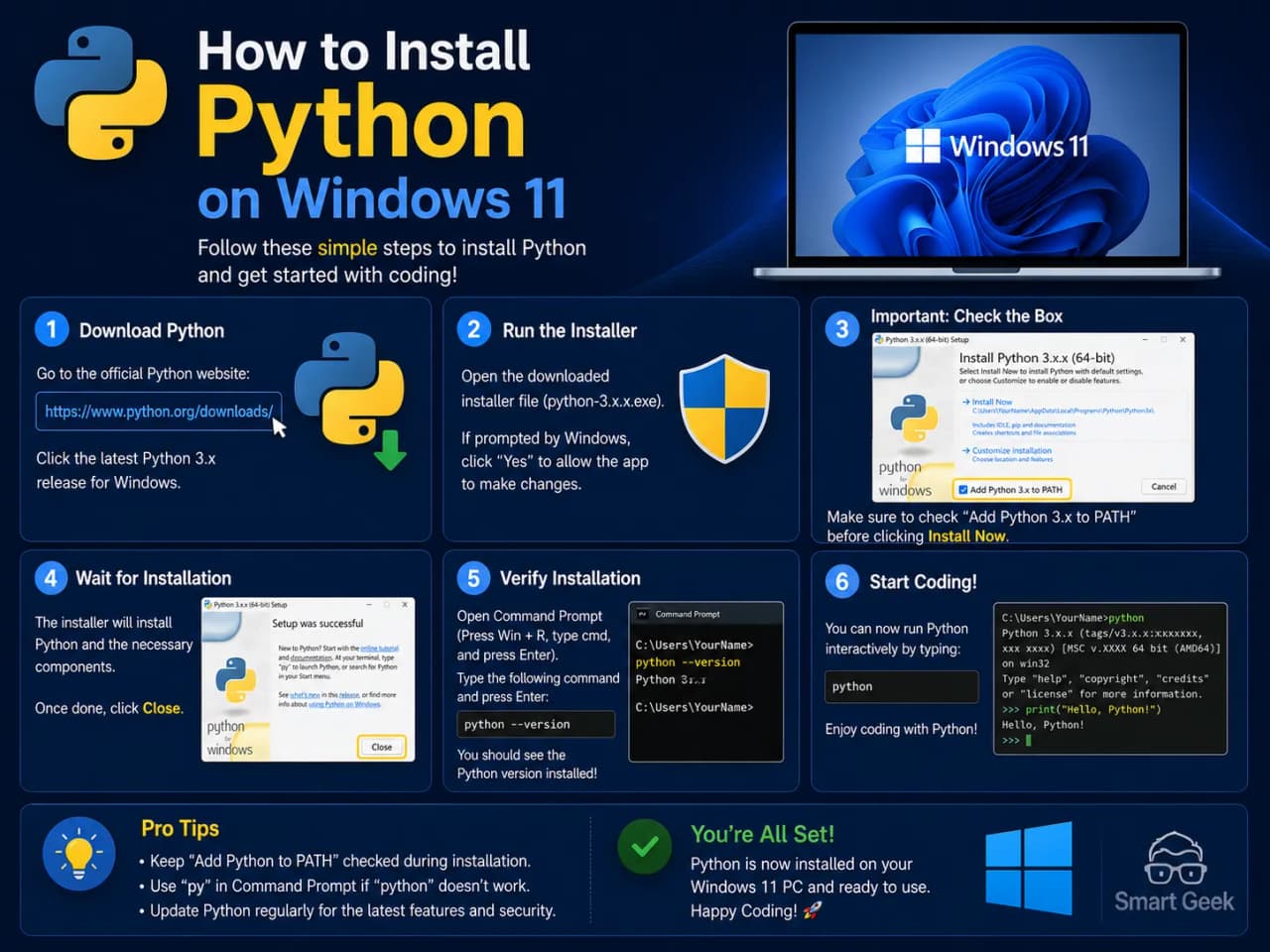
How to Install Python on Windows 11 (Step-by-Step)
Learn how to install Python on Windows 11 step-by-step. Covers download, PATH setup, version check, and common errors. Updated May 2026 for beginners.
 Sayed Bin Fahad
Python is one of the easiest programming languages to get started with, but the installation trips up more beginners than you'd expect. Follow this guide exactly, and you'll have Python running on your Windows 11 machine in under 10 minutes.
Why Installing Python Correctly From the Start Matters
A bad Python installation causes headaches for weeks. Commands don't work, scripts throw errors, and beginners assume they're doing something wrong when it's actually just a setup issue.
The most common culprit? A single unchecked checkbox during installation. This guide makes sure you don't miss it.
Everything in this article is accurate and tested as of May 2026 on Windows 11.
Which Python Version Should You Download?
Before you download anything, you need to know which version to pick. Python 3.x is what everyone uses; Python 2 is officially dead, and you should ignore it completely.
Here's a quick comparison of the recent Python 3 versions:
Version | Release Year | Status | Recommended For |
Python 3.11 | 2022 | Stable (maintenance) | Older projects, compatibility-heavy work |
Python 3.12 | 2023 | Stable | General use, most tutorials |
Python 3.13 | 2024 | stable | General use, most tutorials |
Python 3.14 | 2025 | Latest stable | New projects, beginners starting fresh |
Which one should you pick? If you're a beginner with no specific project requirements, download Python 3.14.4. It's the latest stable release as of 7 April 2026 and has the best performance improvements and error messages (Python 3.14 notably made error messages far more readable for beginners).
💡 Tip: If you're following a specific course or tutorial, check which Python version it recommends. Most modern tutorials work fine with 3.12 or 3.13.
How to Install Python on Windows 11: Step-by-Step
Step 1: Go to the Official Python Website
Open your browser and go to python.org/downloads. This is the official site maintained by the Python Software Foundation. Never download Python from third-party sites. Stick to the official source.
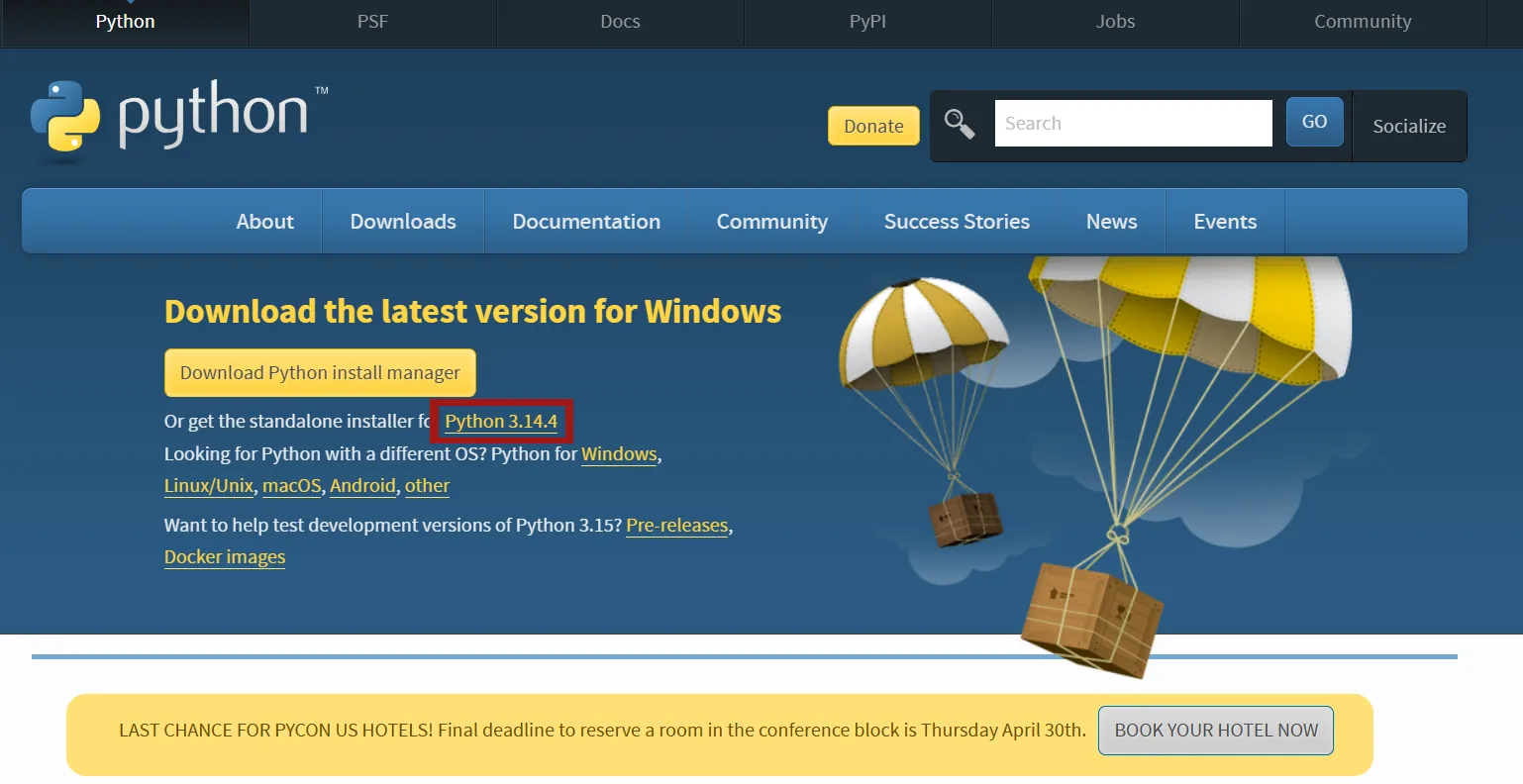
You'll see a yellow "Download Python 3.x.x" button at the top. Click it. The site automatically detects that you're on Windows and offers the correct installer.
Step 2: Download the Windows Installer
Click the download button. You'll get a file named something like:
python-3.14.x-amd64.exe
The amd64 part means it's the 64-bit version, which is what virtually every modern Windows 11 PC uses. Save it somewhere easy to find, like your Desktop or Downloads folder.
Step 3: Run the Installer
Double-click the downloaded .exe file. You'll see the Python installer window open.
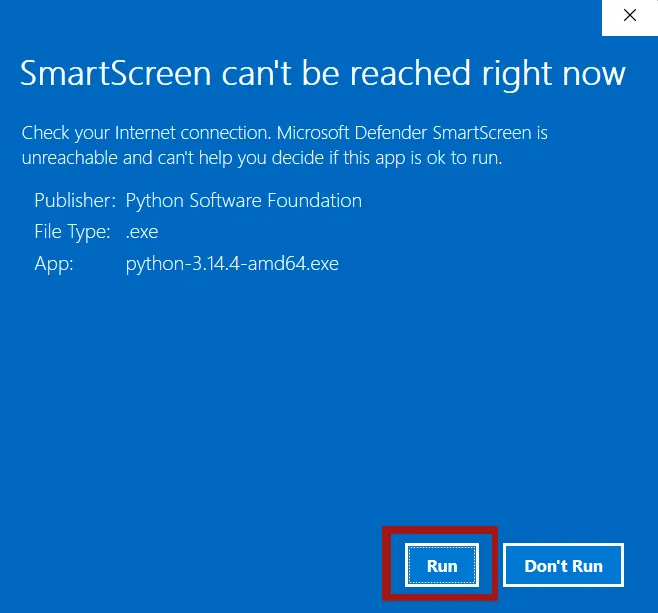
You might see this: Click Run
Before you click anything else, look at the bottom of that first screen.
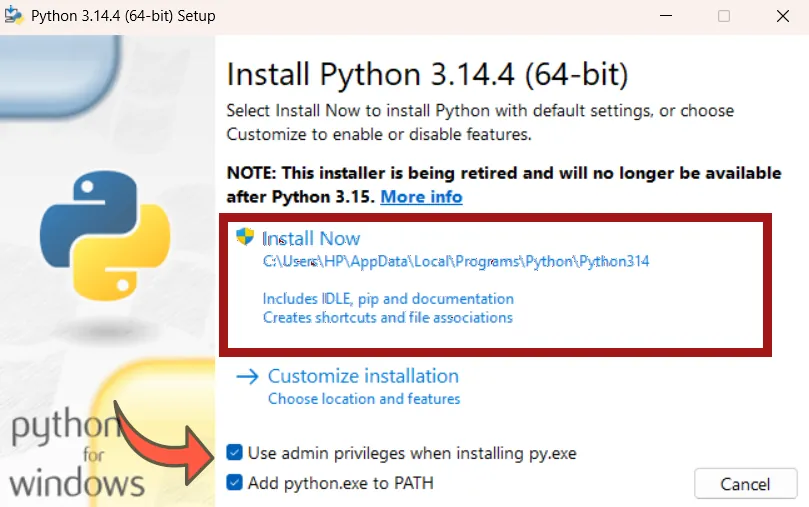
You'll see two checkboxes:
✅ Use admin privileges when installing py.exe✅ Add python.exe to PATH.
This is the single most important step in this entire guide. I cannot stress this enough: check the "Add Python to PATH" checkbox before proceeding.
Without it, your Command Prompt won't recognize Python commands, and you'll spend an hour confused about why nothing works. Every beginner I've ever helped who said "Python isn't working" had skipped this checkbox. When I first set up Python, I missed the PATH checkbox too.
Step 4: Choose "Install Now"
After checking the PATH checkbox, click "Install Now" (not "Customize installation", you don't need that yet).
The installer will take 1–3 minutes. You may see a Windows UAC (User Account Control) pop-up asking for permission; click Yes.
Step 5: Wait for Installation to Complete
You'll see a progress bar. Let it finish. Don't close the window.
Step 6: Click "Close" When Done
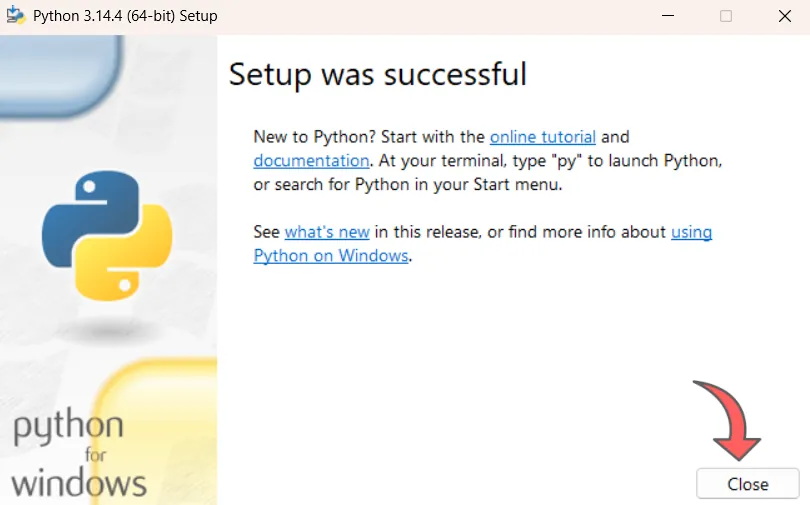
Once the installation finishes, you'll see a "Setup was successful" screen. You can optionally click "Disable path length limit." It's worth doing, as it prevents some rare issues with deeply nested file paths.
Then click Close.
That's it. Python is now installed on your Windows 11 machine.
How to Verify Python is Installed Correctly
Don't assume the installation worked; verify it. This takes 30 seconds.
Open Command Prompt
Press Windows + R. Type cmd, and hit Enter. Or search "Command Prompt" in the Start menu.
Run the Version Check Command
Type the following and press Enter:
python --versionOr
py --versionYou should see something like:
Python 3.14.4
If you see that, Python is installed and working correctly. Congratulations.
Now check that pip (Python's package installer) also works:
pip --versionExpected output:
pip 26.0.1 from C:\Users\HP\AppData\Local\Programs\Python\Python314\Lib\site-packages\pip (python 3.14)
💡 Tip: If python --version doesn't work but py --version does, that's fine, some Windows setups use py as the command. However, if neither works, jump to the error-fixing section below.
Common Python Installation Errors and How to Fix Them
Error 1: "'python' is not recognized as an internal or external command."
What it means: Python was not added to your system PATH.
How to fix it:
The fastest fix is to uninstall Python and reinstall it. This time, make sure to check the "Add Python to PATH" box on the first screen of the installer.
To uninstall: Go to Settings → Apps → Installed Apps, search for Python, click the three dots, and select Uninstall. Then reinstall from python.org with the checkbox checked.
Alternative fix (without reinstalling):
Press
Windows + Sand search for "Environment Variables."Click "Edit the system environment variables."
Click the "Environment Variables" button
Under "User variables", find Path and double-click it
Click "New" and add:
C:\Users\YourName\AppData\Local\Programs\Python\Python313\
C:\Users\YourName\AppData\Local\Programs\Python\Python313\Scripts\
Click OK and restart Command Prompt
Error 2: "pip is not recognized."
What it means: The Python Scripts folder isn't in your PATH.
How to fix it: Follow the same PATH steps above, and make sure you add the \Scripts\ path (the second line in the example above). Pip lives in that Scripts folder.
Error 3: Python Opens the Microsoft Store Instead of Running
This happens on some Windows 11 machines where a Microsoft Store alias hijacks the Python command.
How to fix it:
Go to
Settings → Apps → Advanced app settings → App execution aliasesFind "App Installer" entries for python.exe and python3.exe
Toggle both off
Restart the Command Prompt and try again
Error 4: "Access is Denied" During Installation
What it means: You're not running the installer with admin rights.
How to fix it: Right-click the .exe installer file and select "Run as administrator".
What Can You Do After Installing Python?
Installing Python is just the starting line. Here are five beginner-friendly things you can build or do right away, no prior experience needed.
1. Build a Simple Calculator. Write a script that takes two numbers and performs addition, subtraction, multiplication, and division. This teaches you variables, input/output, and basic logic all in under 30 lines of code.
2. Automate Repetitive File Tasks Python's built-in os and shutil libraries let you write scripts that rename files in bulk, organize folders, or move files automatically. In my experience, this is one of the most immediately useful things a beginner can build.
3. Build a Web Scraper Using a library called BeautifulSoup (installed via pip), you can pull data from websites like prices, headlines, or sports scores and save them to a file. It's surprisingly beginner-friendly.
4. Create a Simple Quiz Game: Build a text-based quiz in the terminal. Ask questions, accept user input, keep score. This covers conditionals, loops, and functions, the core building blocks of Python.
5. Learn Data Analysis With Pandas. Install the pandas library with pip install pandas and start analyzing spreadsheet-style data with just a few lines of code. This is one of Python's biggest strengths, and it's in high demand in jobs.
How to Install Your First Python Package (Bonus Step)
Now that Python is installed, here's how to add external libraries using pip:
pip install requestsThis installs requests, a popular library for making web requests. To verify it is installed:
pip show requestsThat's all there is to it. The entire Python ecosystem, with thousands of free libraries, is now accessible to you this way.
Common Mistakes to Avoid
1. Not checking "Add Python to PATH" Covered above, but worth repeating. This single checkbox causes 80% of beginner Python problems on Windows.
2. Downloading Python from unofficial sources. Always use python.org. Third-party download sites may bundle malware or outdated versions.
3. Installing Python 2 by accident. Some older tutorials or Stack Overflow answers still reference Python 2. It was discontinued in 2020. If you see Python 2.x.x anywhere, ignore it and download Python 3.
4. Installing multiple Python versions without understanding virtual environments. If you later install Python 3.11 alongside 3.13 for a specific project, your system can get confused about which version to use. Before doing that, learn about venv (Python's virtual environment tool).
5. Skipping the verification step. Always run python --version after installing. Don't assume it worked. Catching a failed installation right away saves a lot of debugging frustration later.
FAQ: Installing Python on Windows 11
Q1: Is Python free to download and use? Yes, completely. Python is open-source and free for personal, educational, and commercial use. You'll never pay for Python itself.
Q2: Do I need to uninstall an older version of Python before installing a new one? Not necessarily. Windows can have multiple Python versions installed. However, for beginners, it's simpler to have just one version. If you're installing Python for the first time, there's nothing to worry about.
Q3: What's the difference between Python 3.12 and 3.13? Python 3.13 introduced better error messages, improved performance, and some new language features. For beginners, the differences are minor; both work well. Start with 3.13 since it's the latest stable version as of May 2026.
Q4: Can I install Python without admin rights on Windows 11? Yes. The Python installer offers an option to install just for the current user (not system-wide). This doesn't require admin access. Choose "Install Now," and Python will install to your user profile folder.
Q5: How do I update Python to a newer version later? Download the new version from python.org and run the installer. It will update your existing installation. Then run python --version again to confirm the update.
Python setup on Windows 11 is genuinely straightforward once you know what to watch for, and now you do. Check that the PATH checkbox, verify with python --version or py --version , and you're ready to start building real things.