
Fix 'MySQL Shutdown Unexpectedly' in XAMPP: Step-by-Step Guide
Fix the frustrating “MySQL Shutdown Unexpectedly” error in XAMPP with this clear, step-by-step guide. Learn the most common causes from port conflicts to corrupted data files and follow simple solutions to get your local server running smoothly again in minutes.
Are you facing the dreaded "MySQL shutdown unexpectedly" error in XAMPP? Don’t worry! This issue can be frustrating, but it’s a common one, and we’ve got you covered. Whether you’re working on a personal project or handling a live application, this error can bring your workflow to a halt. In this guide, we’ll walk you through the causes and solutions for this problem.
Common Causes of the MySQL Shutdown Error
The error message typically looks like this:
[mysql] Status change detected: stopped
[mysql] Error: MySQL shutdown unexpectedly.
[mysql] This may be due to a blocked port, missing dependencies,
[mysql] improper privileges, a crash, or a shutdown by another method.
[mysql] Press the Logs button to view error logs and check the Windows Event Viewer for more clues.
Several factors can trigger this issue:
Blocked port: MySQL could be competing for the same port with another application.
Corrupted MySQL files: In some cases, database files or tables may become corrupt.
Improper privileges: Lack of administrative rights can prevent MySQL from functioning properly.
Other services interference: Services like Apache or antivirus programs might disrupt MySQL.
Solutions to Fix the MySQL Shutdown Error
1. Check for Blocked Port
The default port for MySQL is 3306, but it could be blocked by another service. Here's how you can change the port:
Open the XAMPP Control Panel.
Click on the Config button next to MySQL.
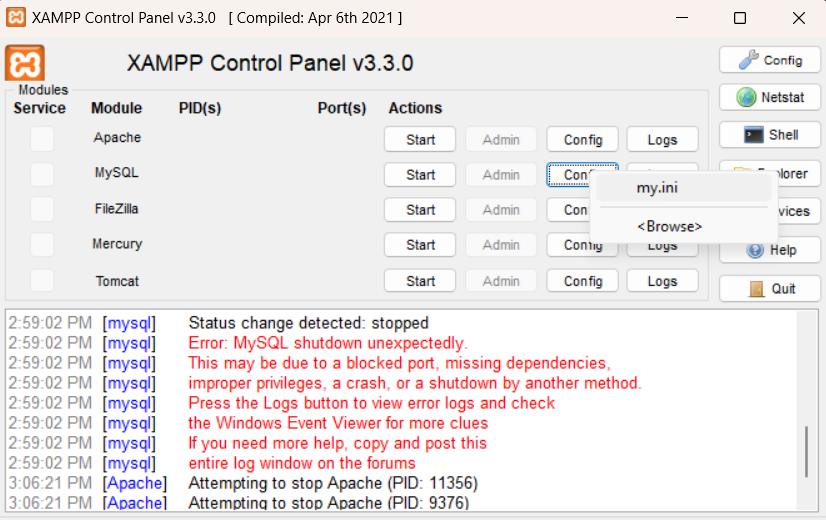
Choose my.ini file to edit.
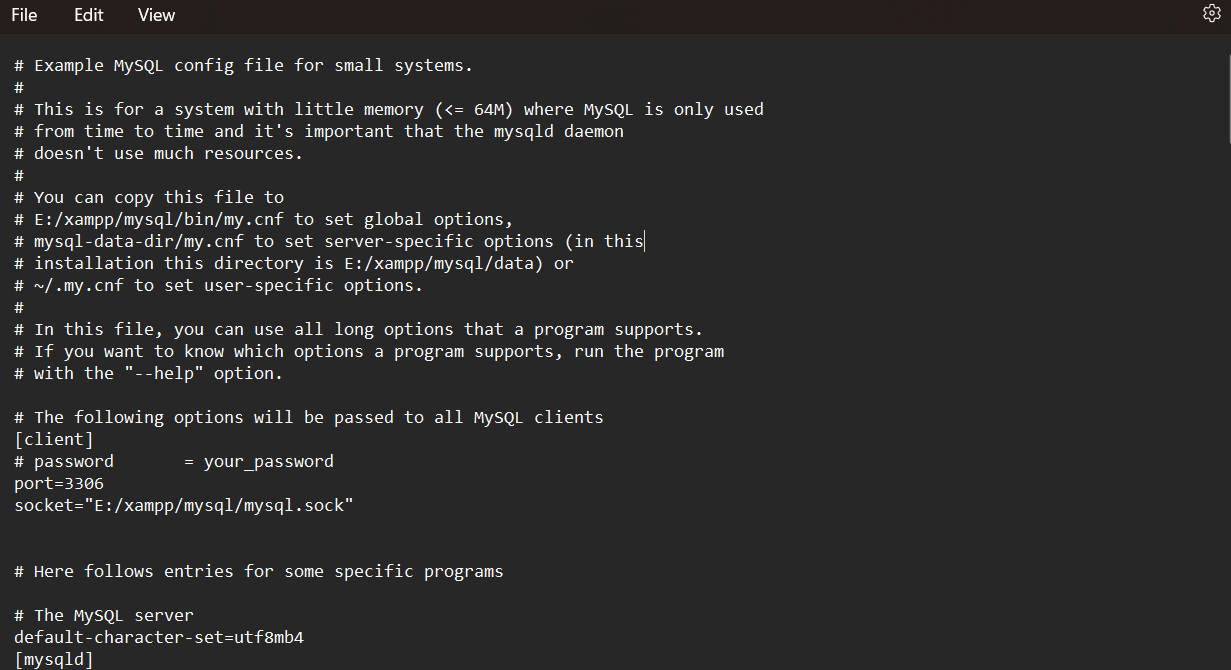
Find the line that says
port=3306and change it to another unused port, e.g.,3307.Press Ctrl + H. It will pop up a search bar and replace with free
port.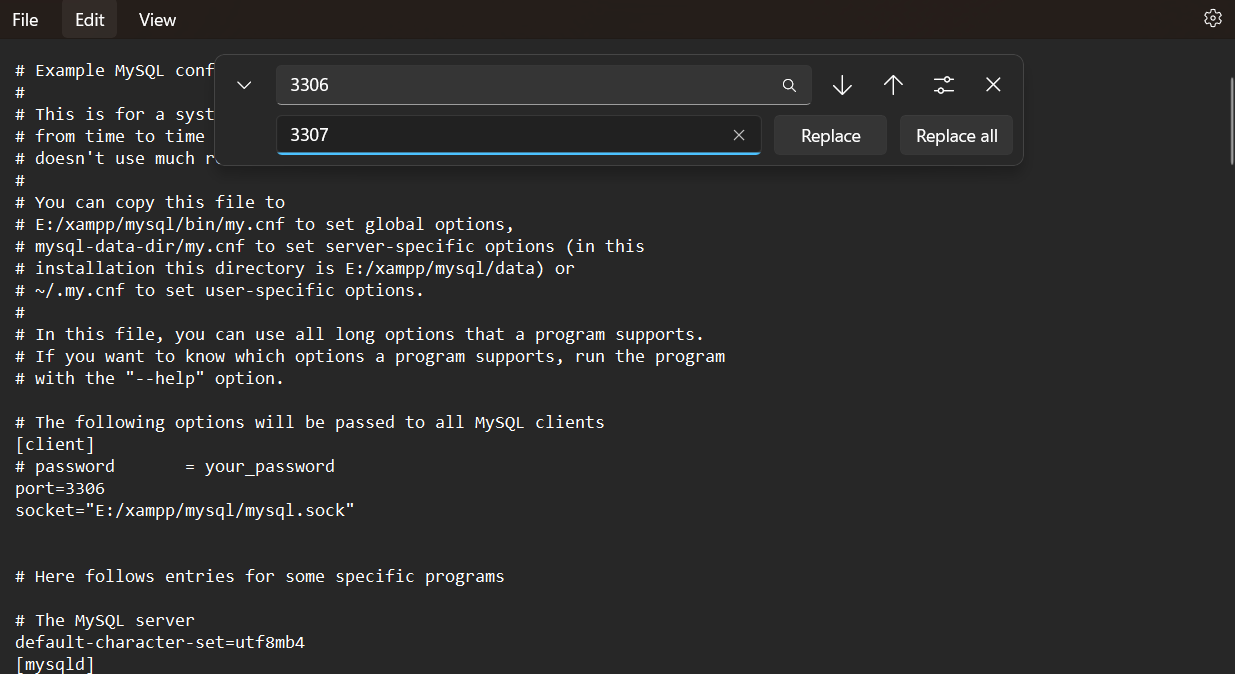
Save the file and restart MySQL.
2. Repair Corrupted Files
If your MySQL files are corrupted, this may be causing the shutdown. Follow these steps:
Go to the
xampp/mysql/datafolder.Create a backup of the data folder just in case.
Delete the
ib_logfile0andib_logfile1files.Restart MySQL in XAMPP.
This step will allow MySQL to recreate the deleted log files, which often resolves the issue.
3. Check Administrative Privileges
If MySQL doesn’t have the necessary permissions, it won’t start. Make sure you’re running XAMPP as an administrator:
Right-click on the XAMPP Control Panel shortcut.
Select Run as administrator.
Restart MySQL.
4. Review Error Logs
The Logs button in XAMPP gives access to MySQL error logs. Review the logs for more clues:
In the XAMPP Control Panel, click on Logs next to MySQL.
Check the mysql_error.log for any specific errors that can give you more insight into what’s causing the shutdown.
5. Check the Windows Event Viewer
The Windows Event Viewer can provide additional information about what caused the shutdown:
Press Windows + X and select Event Viewer.
Navigate to Windows Logs > Application.
Look for any errors related to MySQL.
Advanced Troubleshooting
1. Antivirus Software Interference
Sometimes antivirus software can block MySQL from starting. Ensure that MySQL and XAMPP are added to your antivirus’s exceptions list. This might prevent any shutdown caused by security software.
2. Reinstall MySQL
If none of the above solutions work, consider reinstalling MySQL:
Stop MySQL and close XAMPP.
Backup your databases located in the
mysql/datafolder.Uninstall MySQL by removing its folder from
xampp/mysql.Reinstall MySQL by copying a fresh
mysqlfolder from a clean XAMPP installation.Restore your backed-up databases.
FAQs
Why does MySQL keep shutting down unexpectedly in XAMPP?
This usually happens due to port conflicts, corrupted database files, missing permissions, or interference from other software like antivirus programs. The error message and MySQL logs typically provide helpful clues to diagnose the issue.
Can changing the MySQL port really fix the issue?
Yes, changing the default port (3306) can resolve the problem if another application is using it. Update the port in the my.ini file to an unused one, like 3307, then restart MySQL to see if the issue is resolved.
What files should I delete if I suspect MySQL corruption?
If you suspect corruption, you can safely delete the ib_logfile0 and ib_logfile1 files in the xampp/mysql/data directory. These log files will be automatically recreated when MySQL starts. Be sure to back up your data folder before making any changes.
How do I check if an antivirus is blocking MySQL?
Temporarily disable your antivirus software and try starting MySQL. If it starts without errors, it’s likely your antivirus was interfering. Add the XAMPP and MySQL folders to your antivirus exceptions list to prevent future issues.
Will I lose my databases if I reinstall MySQL?
No, you won’t lose them if you back them up properly. Before reinstalling, copy your databases from xampp/mysql/data (excluding system files). After reinstalling MySQL, you can move your backed-up databases back to the new data folder.
Conclusion
The "MySQL shutdown unexpectedly" error in XAMPP can be caused by a variety of issues, from blocked ports to corrupted files. By following the solutions outlined in this guide, you can quickly identify the problem and get your MySQL server back up and running. Always remember to back up your data before making major changes!
Sayed Bin Fahad