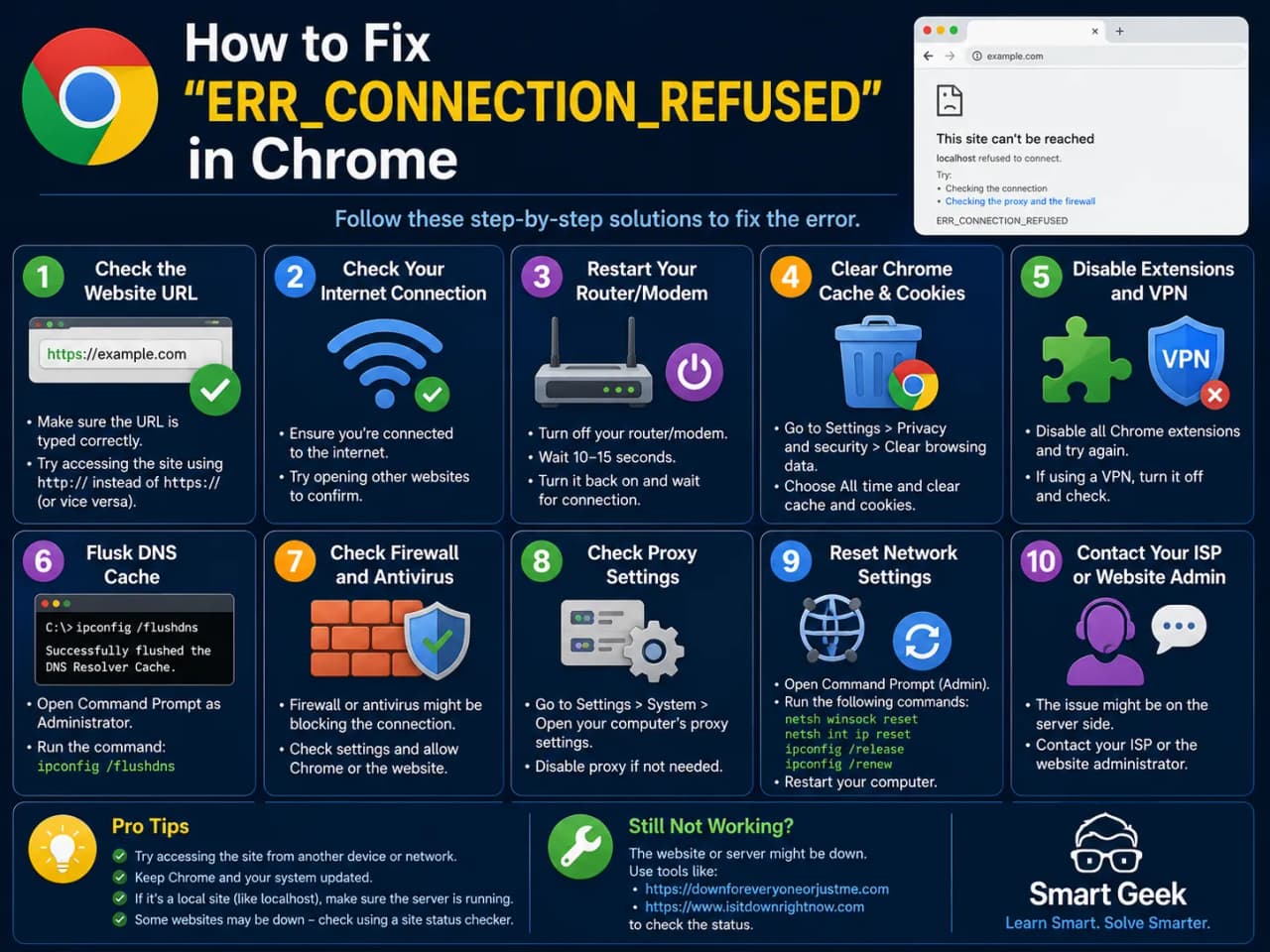
How to Fix "ERR_CONNECTION_REFUSED" in Chrome
Nothing is more frustrating than opening Chrome and seeing "ERR_CONNECTION_REFUSED" staring back at you. Especially when you have no idea what it means or how to fix it. The good news is this error is almost always fixable in under 5 minutes.
Nothing is more frustrating than opening Chrome and seeing "ERR_CONNECTION_REFUSED" staring back at you, especially when you have no idea what it means or how to fix it. The good news is this error is almost always fixable in under 5 minutes, and this guide will show you exactly how.
What Does ERR_CONNECTION_REFUSED Actually Mean?
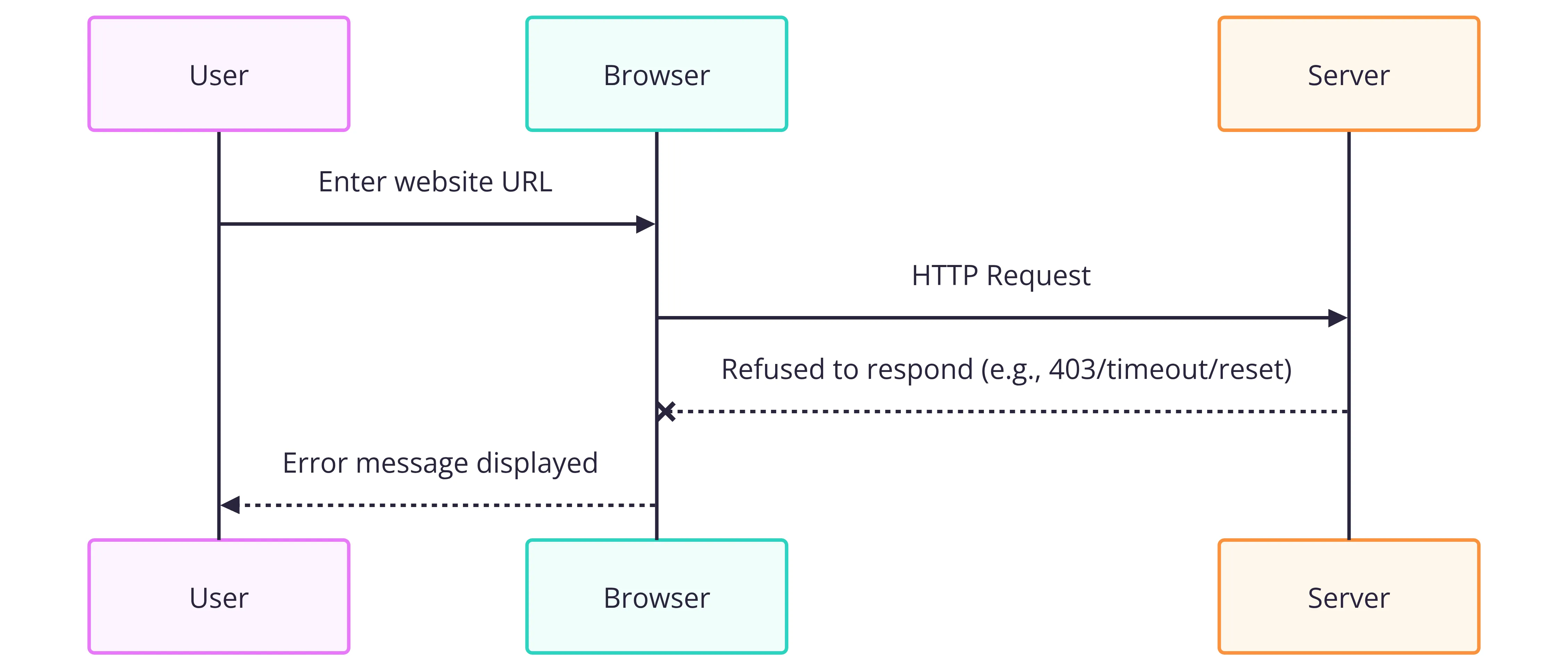
Before fixing anything, it helps to understand what this error is telling you. When Chrome shows ERR_CONNECTION_REFUSED, it means your browser sent a request to a website's server, and the server flat out refused to respond. Chrome is not the problem. Your internet is not necessarily the problem either.
The refusal can happen for several reasons:
The website's server is down or overloaded
Your firewall or antivirus is blocking the connection
Your browser's settings or cache are corrupted
Your DNS or proxy settings are misconfigured
A VPN is interfering with the connection
The key is figuring out which one applies to you. Work through the fixes below in order, most people solve it within the first three steps.
Fix 1: Check If the Website Is Down (Not Your Fault)
Before touching any settings on your PC, confirm whether the problem is on your end or the website's end.
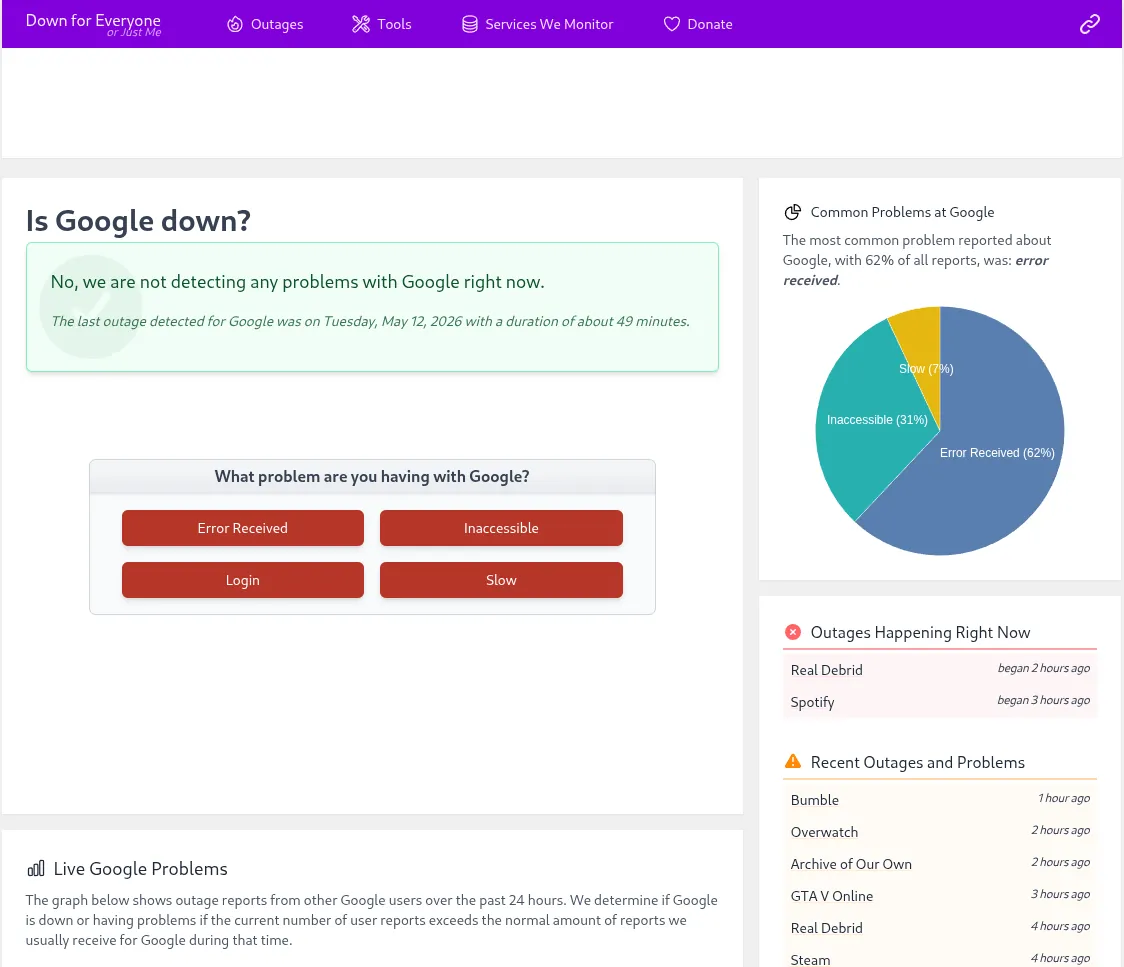
Go to downforeveryoneorjustme.com or isitdownrightnow.com and enter the URL of the website you are trying to visit.
If the site is down for everyone, there is nothing you can do. Wait 30–60 minutes and try again. The problem is on the server side.
If the site is only down for you, keep reading. The issue is on your end and the fixes below will solve it.
Tip: Also try opening the same website on your phone using mobile data (not WiFi). If it loads on mobile data but not on your PC, the problem is definitely your network or browser settings, not the website.
Fix 2: Restart Everything (The Underrated Fix)
This sounds too simple, but it solves the error more often than any other fix. In my experience, about 30% of ERR_CONNECTION_REFUSED errors disappear after a proper restart.
Do this in order:
Close Chrome completely
Restart your router, unplug it, wait 30 seconds, plug it back in
Restart your PC
Open Chrome and try the website again
If it works, great. If not, move to the next fix.
Fix 3; Clear Chrome's Cache and Cookies
Chrome stores temporary data to load websites faster. Sometimes this cached data becomes corrupted and causes connection errors.
How to clear cache in Chrome:
Open Chrome and press
Ctrl + Shift + DeleteSet the time range to All time
Check these three boxes:
Browsing history
Cookies and other site data
Cached images and files
Click Clear data
Restart Chrome and try the website again
Shortcut: Ctrl + Shift + Delete → Select All Time → Clear DataFix 4; Disable Your Firewall or Antivirus Temporarily
Windows Firewall and third-party antivirus programs (like Avast, Norton, or Kaspersky) sometimes block connections to certain websites, triggering the ERR_CONNECTION_REFUSED error.
Test if your firewall is the cause:
Press
Windows + Sand search Windows SecurityClick Firewall & network protection
Click your active network (usually "Private network")
Toggle Microsoft Defender Firewall to OFF
Try the website in Chrome
If it loads, your firewall was blocking it. Turn the firewall back on immediately and add the website as an exception instead of leaving the firewall off.
Important: Never leave your firewall permanently disabled. This is a test only. Re-enable it right after testing.
Fix 5; Flush DNS Cache
Your PC stores DNS records locally to load websites faster. Outdated or corrupted DNS records can cause ERR_CONNECTION_REFUSED. Flushing the DNS cache forces your PC to fetch fresh records.
How to flush DNS on Windows 11:
Press
Windows + R, typecmd, pressCtrl + Shift + Enterto run as administratorType each command below and press Enter after each one:
ipconfig /flushdnsipconfig /registerdnsipconfig /releaseipconfig /renewRestart Chrome and try again
You should see a confirmation message: "Successfully flushed the DNS Resolver Cache."
Fix 6; Change Your DNS Server
Your Internet Service Provider's DNS servers can sometimes be slow, unreliable, or blocking certain sites. Switching to Google's public DNS or Cloudflare's DNS often fixes connection errors immediately.
How to change DNS on Windows 11:
Press
Windows + Ito open SettingsGo to Network & Internet → Wi-Fi (or Ethernet)
Click your connected network
Scroll down to DNS server assignment and click Edit
Switch from Automatic to Manual
Enter these DNS addresses:
DNS Provider | Primary DNS | Secondary DNS |
|---|---|---|
Google DNS | 8.8.8.8 | 8.8.4.4 |
Cloudflare DNS | 1.1.1.1 | 1.0.0.1 |
OpenDNS | 208.67.222.222 | 208.67.220.220 |
Click Save, restart Chrome, and test
Google DNS (8.8.8.8) is the most reliable option for most users worldwide.
Fix 7; Disable Proxy Settings
If a proxy is configured on your PC, and even one you did not set up yourself. It can interfere with Chrome's connections and cause this error.
How to disable proxy on Windows 11:
Press
Windows + I→ Network & InternetScroll down and click Proxy
Under Manual proxy setup, make sure Use a proxy server is toggled OFF
Under Automatic proxy setup, make sure Automatically detect settings is ON
Restart Chrome
Fix 8: Reset Chrome Settings
If none of the above fixes work, Chrome's internal settings may be misconfigured. Resetting Chrome to default settings fixes this without uninstalling the browser.
How to reset Chrome:
Open Chrome and go to
chrome://settings/resetClick Restore settings to their original defaults
Click Reset settings to confirm
This will:
Clear your startup pages and new tab page
Disable all extensions
Reset your default search engine
Clear pinned tabs
It will NOT delete your bookmarks, history, or saved passwords.
Fix 9: Check if a VPN Is Causing the Issue
If you use a VPN, it may be routing your traffic through a server that is blocked or refusing connections. Try these steps:
Disconnect your VPN completely
Open Chrome and try the website
If it loads the VPN was the problem
Switch to a different VPN server location and reconnect
Some websites also actively block VPN traffic, which means no VPN server will work for that specific site.
Fix 10: Reinstall Chrome
If you have tried every fix above and the error still appears across multiple websites, Chrome itself may be corrupted.
How to reinstall Chrome:
Go to Settings → Apps → Installed Apps
Search for Google Chrome and click Uninstall
Download a fresh copy from google.com/chrome
Install and test
Your bookmarks and passwords are saved to your Google account, so you will not lose them.
ERR_CONNECTION_REFUSED vs Similar Chrome Errors
It is easy to confuse this error with other Chrome connection errors. Here is a quick reference:
Error | What It Means | Common Cause |
|---|---|---|
ERR_CONNECTION_REFUSED | Server actively refused connection | Firewall, server down, proxy |
ERR_CONNECTION_TIMED_OUT | Server did not respond in time | Slow network, server overloaded |
ERR_NAME_NOT_RESOLVED | Domain name could not be found | DNS issue, wrong URL |
ERR_INTERNET_DISCONNECTED | No internet connection at all | Router, ISP outage |
ERR_SSL_PROTOCOL_ERROR | HTTPS security handshake failed | SSL certificate issue |
Common Mistakes to Avoid
1. Skipping the "is the site down?" check Half the time the website is just down. Always check this first before touching any settings.
2. Leaving the firewall off after testing Turning off your firewall is a temporary test only. Always turn it back on, and add the website as an exception instead.
3. Flushing DNS without administrator access The ipconfig commands require you to run Command Prompt as administrator (Ctrl + Shift + Enter), not just as a regular user. Without admin rights, the commands will fail silently.
4. Changing DNS and not restarting DNS changes do not take effect until you restart Chrome or your PC. Always restart after changing DNS settings.
5. Resetting Chrome before trying simpler fixes Resetting Chrome should be one of your last steps, not your first. Try clearing cache, flushing DNS, and checking the firewall first.
FAQ
Q1: Is ERR_CONNECTION_REFUSED a virus or hacking attempt? No. This is a standard browser error that happens due to network or configuration issues. It does not mean your PC is infected or that someone is hacking you.
Q2: Why does ERR_CONNECTION_REFUSED only happen on one website? If the error only affects one specific site, it is likely that the website's server is down, your ISP is blocking it, or your firewall has flagged that specific domain. Try accessing it through a VPN or different DNS server.
Q3: Does ERR_CONNECTION_REFUSED mean my internet is broken? Not necessarily. If other websites load fine in Chrome, your internet connection is working. The issue is specific to that website or a misconfigured setting on your PC.
Q4: Can a router cause this error? Yes. Outdated router firmware or a misconfigured router can block connections. Try restarting your router and, if the problem persists, log into your router settings (usually at 192.168.1.1) and check for firmware updates.
Q5: Will resetting Chrome delete my passwords? No. Chrome reset does not delete bookmarks, history, or saved passwords. It only resets browser settings like your startup page, extensions, and search engine defaults. Your data stays safe.
Q6: Why does the error appear on Chrome but not on Edge or Firefox? This confirms the issue is specific to Chrome. Either its cache, settings, or extensions. Start with clearing Chrome's cache (Fix 3) and resetting Chrome settings (Fix 8).
Wrapping Up
ERR_CONNECTION_REFUSED is one of Chrome's most common errors, but it is almost always fixable. Start with the simple checks. Confirm the site is not down, restart your router, and clear your cache. If those do not work, flush your DNS or switch to Google's public DNS server. One of the fixes in this guide will solve it for you.