Top 10 VS Code Extensions Every Developer Needs
A fresh install of VS Code is a blank canvas. Useful, but missing the small conveniences that turn hours of frustration into minutes of flow. I reinstalled my dev environment last year and immediately felt the difference without these ten extensions, so here's the exact list I put back first.
 Sayed Bin Fahad
A fresh install of VS Code is a blank canvas. Useful, but missing the small conveniences that turn hours of frustration into minutes of flow. I reinstalled my dev environment last year and immediately felt the difference without these ten extensions, so here's the exact list I put back first.
Why Extensions Matter More Than You'd Think
VS Code ships lean on purpose, and that's actually smart design. You add only what you need instead of carrying bloat you'll never use. But for beginners, that also means a lot of helpful features are invisible until you go looking for them. The ten extensions below cover formatting, AI assistance, Git, live preview, debugging, readability, and day-to-day productivity. The categories every developer eventually needs, regardless of language.
The 10 Extensions
1. Prettier Code Formatter
What it does: Automatically reformats your code on save, enforcing consistent spacing, indentation, and line breaks.
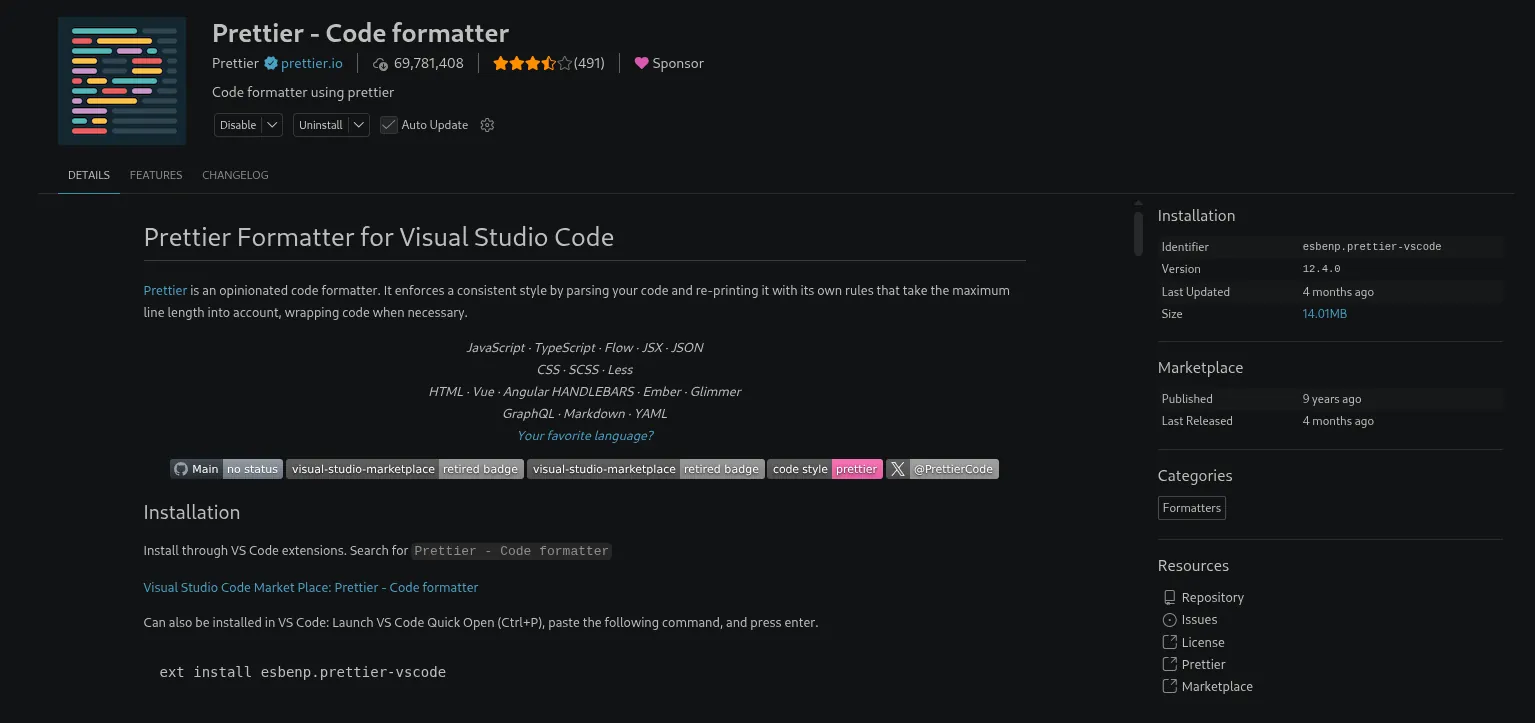
Why it's useful: You stop wasting mental energy on formatting decisions and arguments with teammates over style. Prettier just makes the decision and applies it everywhere.
Best for: JavaScript, TypeScript, CSS, HTML, and most web-focused languages.
2. ESLint
What it does: Scans your JavaScript/TypeScript code for errors, bad practices, and style violations in real time, underlining problems directly in the editor.
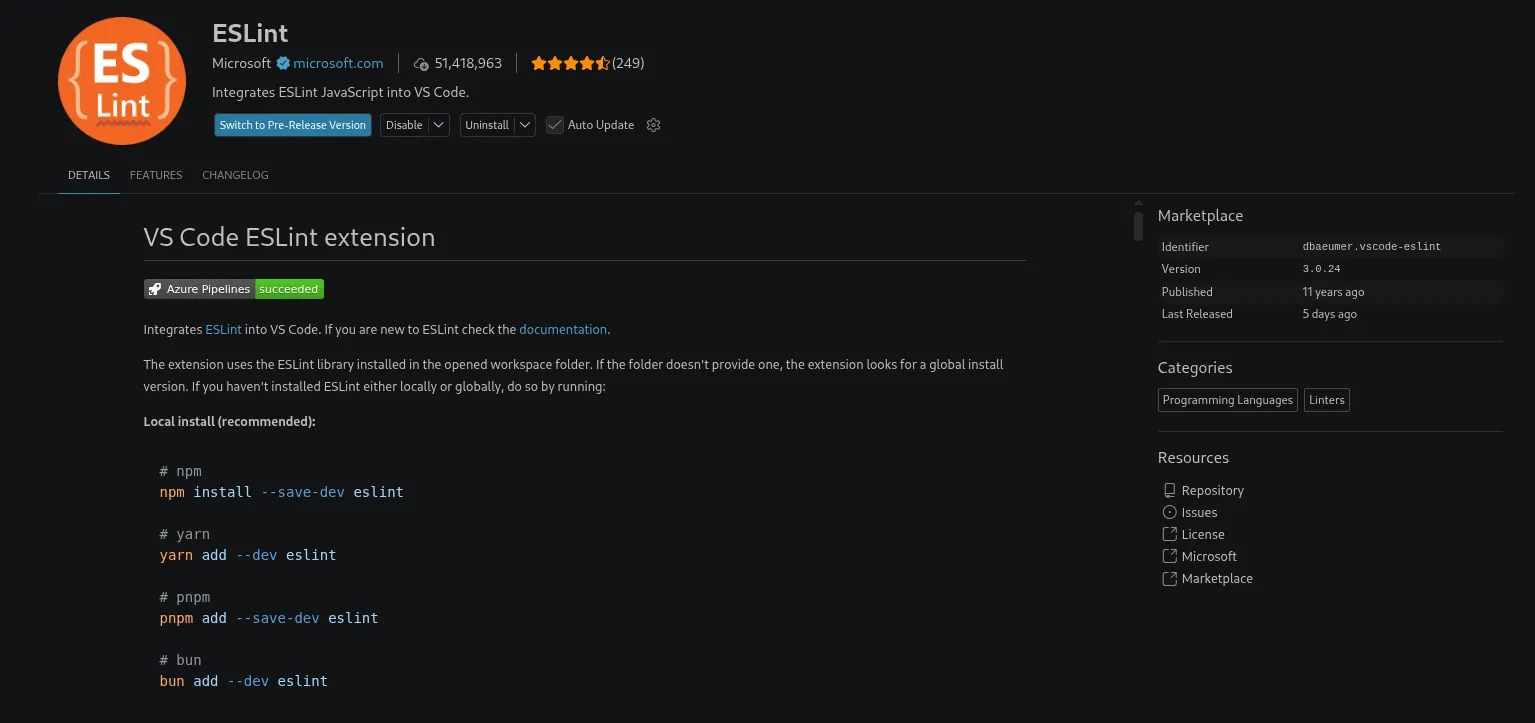
Why it's useful: It catches mistakes before you even run your code. Missing semicolons, unused variables, and risky patterns get flagged instantly instead of surfacing as confusing runtime bugs later.
Best for: JavaScript and TypeScript projects, especially in teams with shared coding standards.
3. GitLens - Git Supercharged
What it does: Adds inline Git blame annotations, commit history, and visual file timelines directly inside your editor.
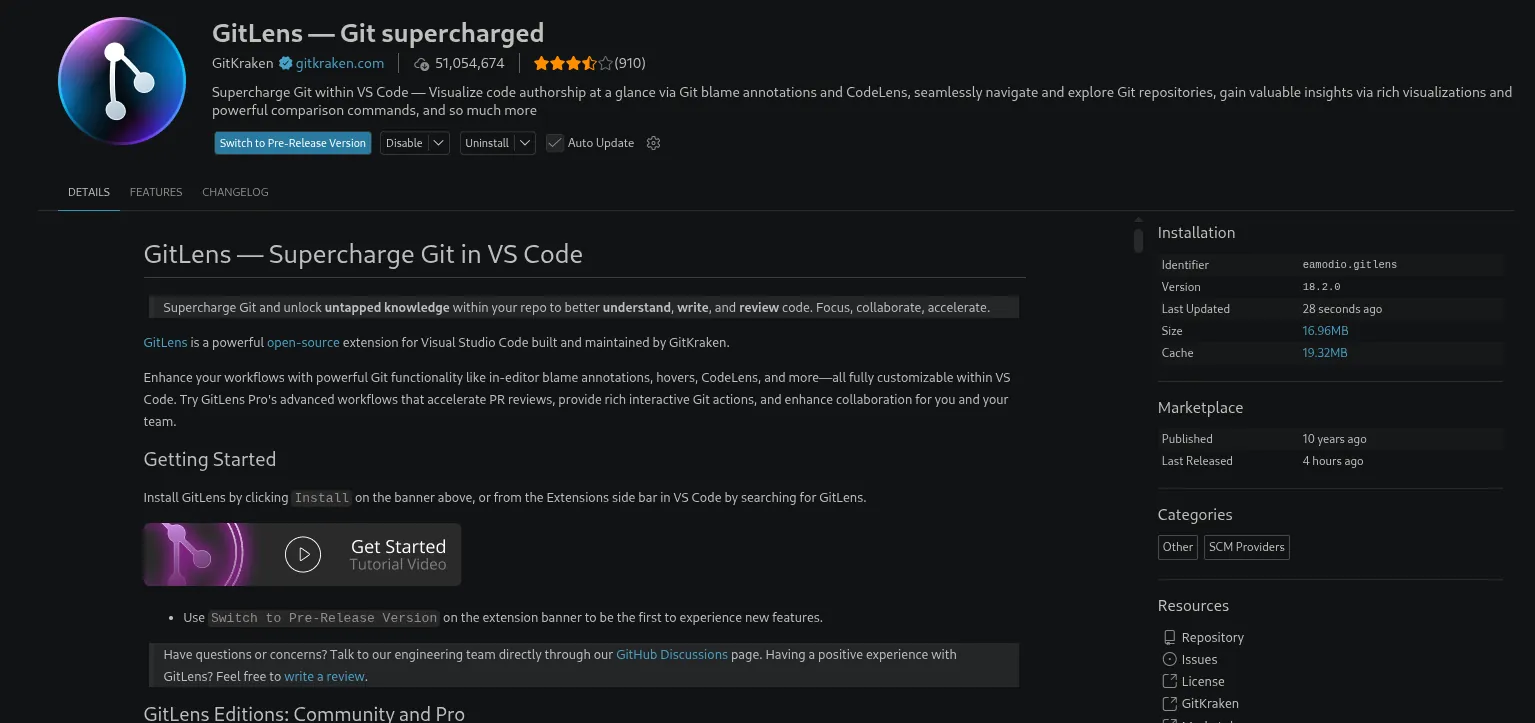
Why it's useful: Instead of jumping to the terminal to check who changed a line and why, you just hover over it. This alone saves a surprising number of context switches throughout the day.
Best for: Any project using Git, particularly useful for teams collaborating on shared codebases.
4. Live Server, Instant Local Preview
What it does: Launches a local development server with live-reload, so your browser automatically refreshes every time you save an HTML, CSS, or JS file.
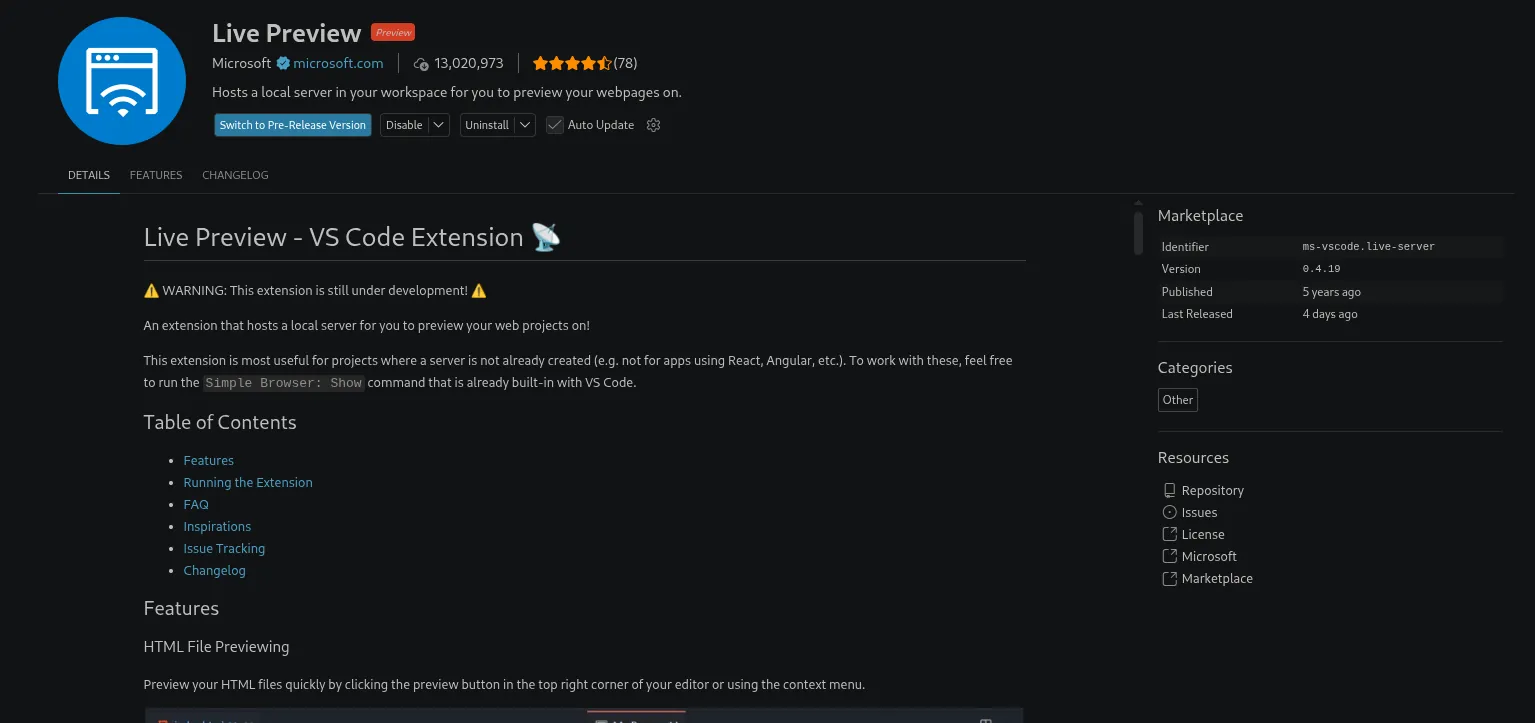
Why it's useful: You see changes the moment you make them, without manually refreshing the browser tab fifty times an hour. It's a small thing that meaningfully speeds up front-end work.
Best for: Beginners and front-end developers working on static HTML/CSS/JS sites.
5. Error Lens
What it does: Takes the errors and warnings VS Code already detects and displays them directly inline next to the offending code, instead of tucked away in the Problems panel.
Why it's useful: You don't have to go hunting for what broke. The error message sits right next to the line causing it, which is especially helpful when you're still learning to read stack traces.
Best for: Beginners and anyone who wants faster debugging feedback across any language.
6. Claude Code (or GitHub Copilot)
What it does: Brings AI-powered code assistance directly into your editor. Claude Code's official VS Code extension adds a sidebar panel where you can chat, review inline diffs of proposed changes, and reference files with @-mentions and it can also read your Problems panel to fix flagged errors automatically. GitHub Copilot instead works primarily as an inline autocomplete-style assistant, suggesting code as you type.
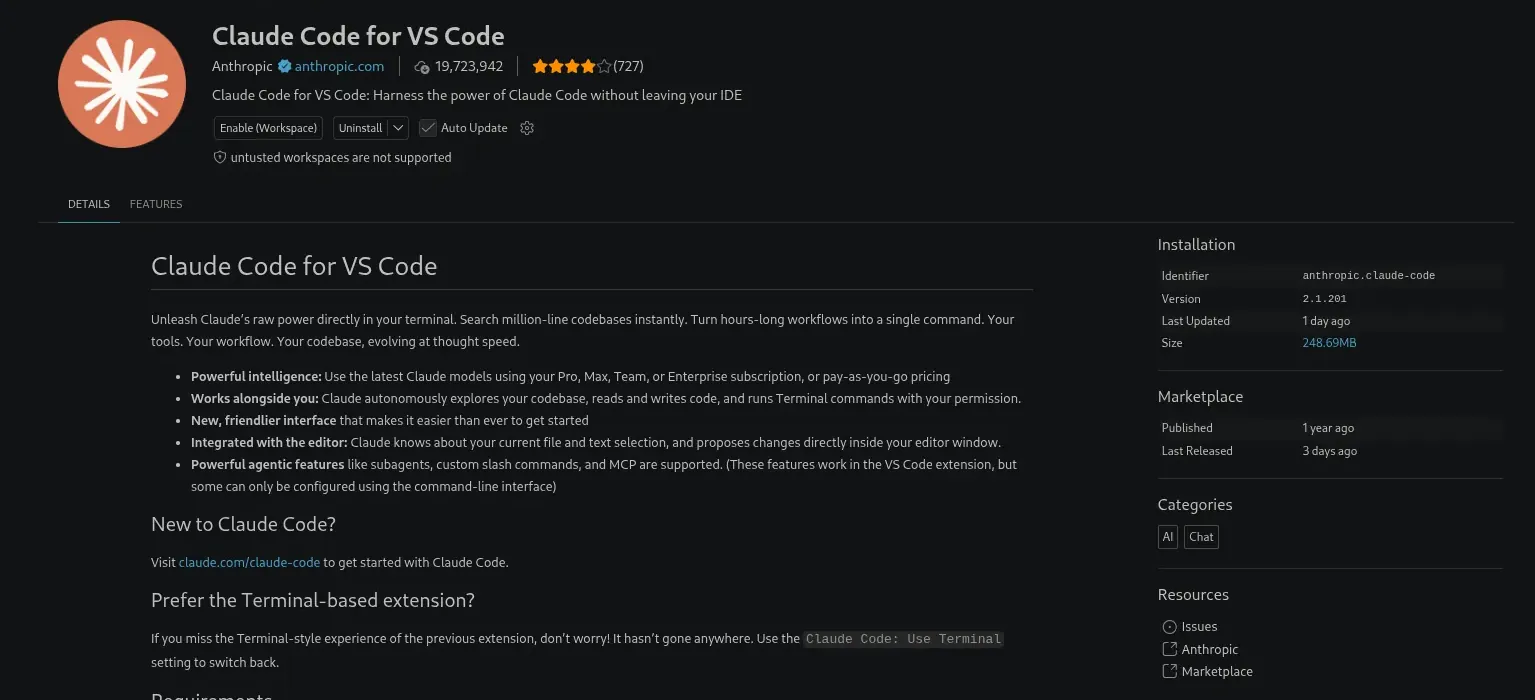
Why it's useful: Both meaningfully speed up repetitive coding tasks, but they suit slightly different habits. Claude Code leans toward a conversational, agentic workflow where you describe what you want and review proposed edits, while Copilot leans toward fast inline suggestions as you type. The Claude Code extension itself is free to install, though using it requires a Claude subscription (Pro, Max, Team, or Enterprise) or a Console account; Copilot has a limited free tier with paid plans for full access.
Best for: Developers of any level who want AI help, Claude Code suits those who like reviewing diffs and working conversationally, Copilot suits those who want fast autocomplete-style suggestions.
7. Material Icon Theme
What it does: Replaces the default plain file icons in your sidebar with colorful, recognizable icons based on file type.
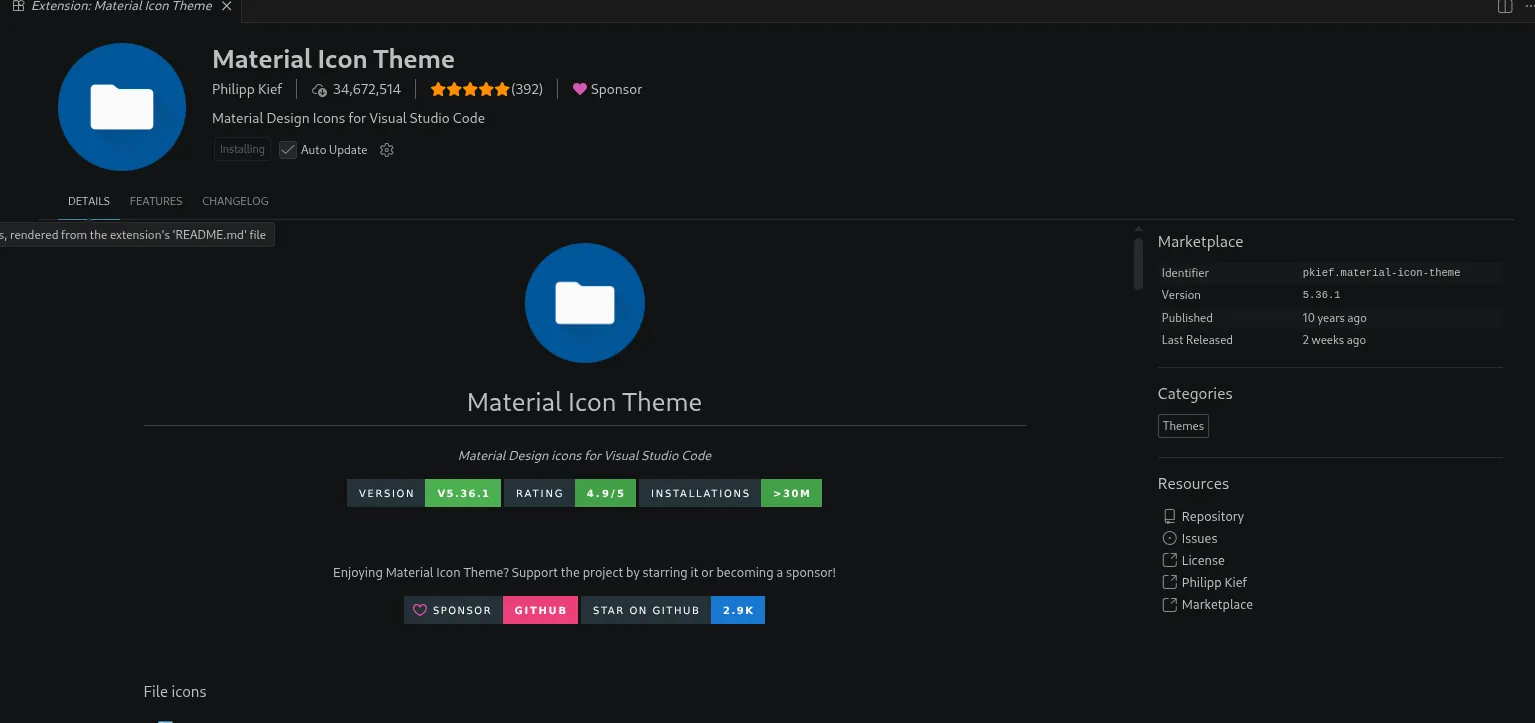
Why it's useful: It sounds purely cosmetic, but being able to instantly spot a .json file versus a .test.js file versus a .env file by glancing at the sidebar genuinely speeds up navigation in larger projects.
Best for: Anyone working with multi-file projects basically every developer.
8. Code Spell Checker
What it does: Underlines misspelled words in your code, comments, and strings, similar to a spell checker in a word processor.
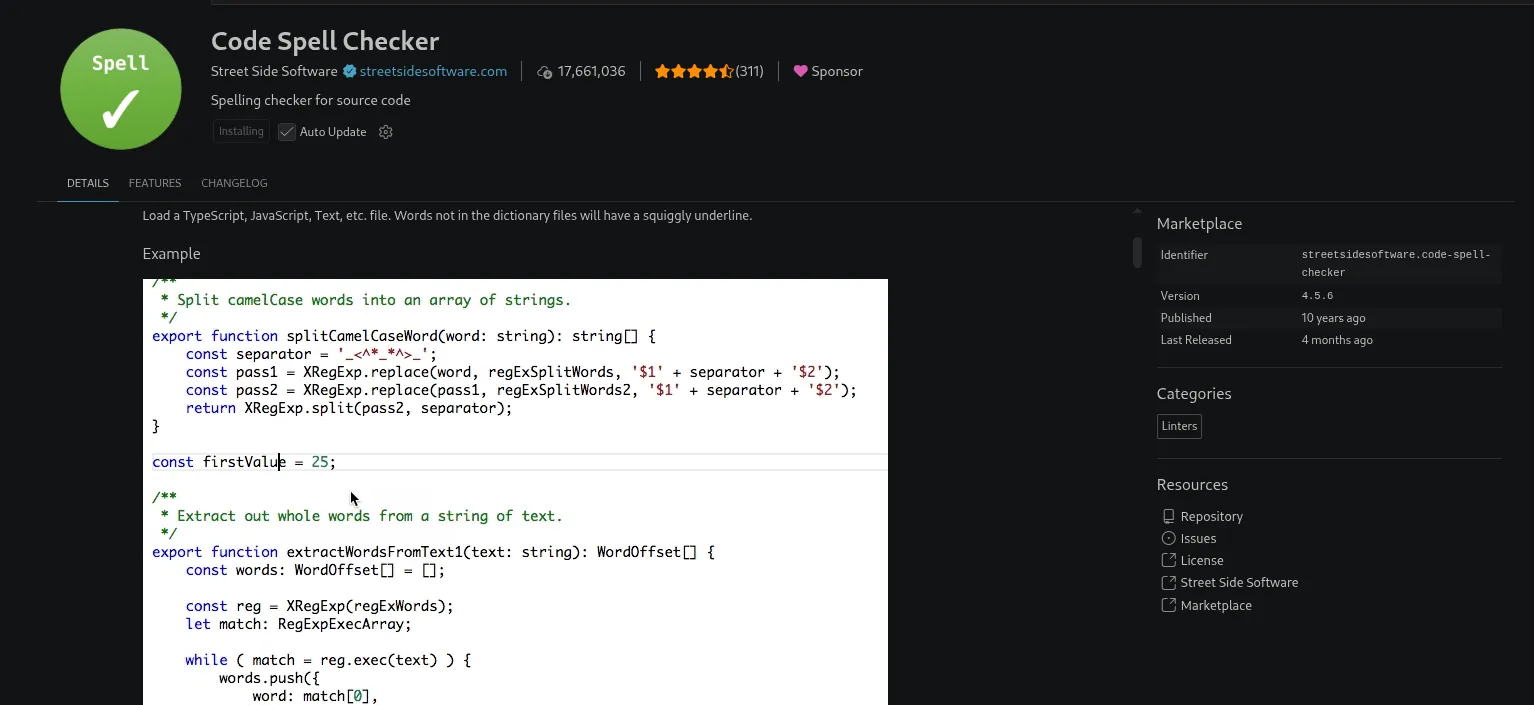
Why it's useful: Typos in variable names (recieveData instead of receiveData) cause bugs that are maddening to track down. This extension catches them before they become a problem.
Best for: Every language and every skill level. This one has near-zero downside.
9. Path Intellisense
What it does: Autocompletes filenames and folder paths as you type import statements or file references.
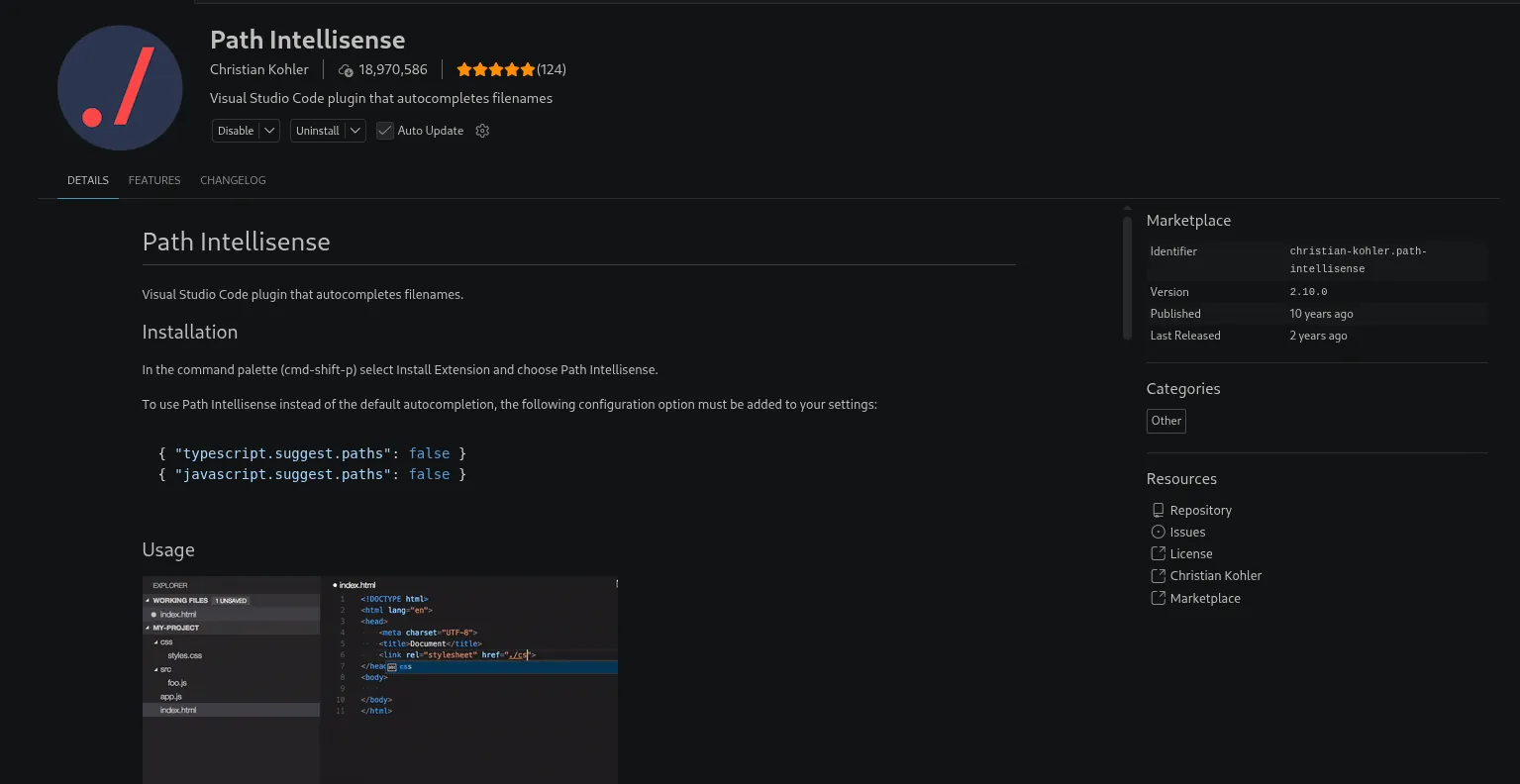
Why it's useful: Instead of remembering or manually typing exact relative paths (../../components/Button), you get a dropdown of valid options as you type, cutting down on broken import errors.
Best for: JavaScript, TypeScript, and any project with nested folder structures.
10. Thunder Client
What it does: Adds a built-in REST API client directly inside VS Code, letting you send requests and inspect responses without leaving your editor or opening Postman.
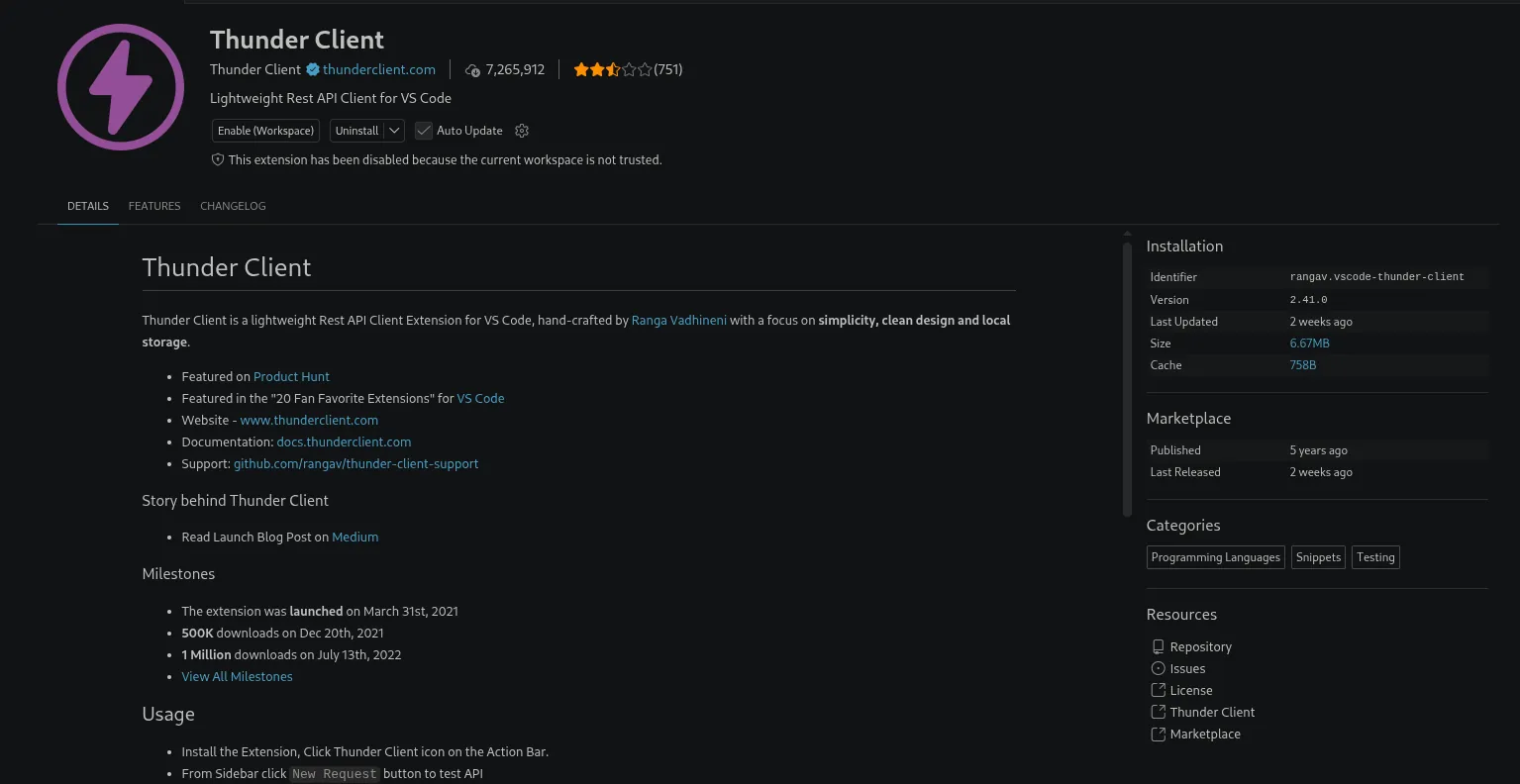
Why it's useful: If you're working with APIs. Which is most backend and full-stack development switching to a separate app constantly breaks your flow. Thunder Client keeps everything in one window.
Best for: Backend developers, full-stack developers, and anyone building or consuming REST APIs.
Comparison Table: All 10 Extensions at a Glance
Extension | Category | Best For | Free or Paid |
|---|---|---|---|
Prettier | Code Formatting | JS, TS, CSS, HTML | Free |
ESLint | Code Formatting / Linting | JavaScript, TypeScript | Free |
GitLens | Git Integration | Any Git-based project | Free (Pro tier optional) |
Live Server | Live Preview | Front-end / static sites | Free |
Error Lens | Debugging / Readability | Any language | Free |
Claude Code | AI Coding Assistance | Conversational, diff-based coding | Free extension; subscription required for use |
GitHub Copilot | AI Coding Assistance | Inline autocomplete suggestions | Free limited tier; paid for full access |
Material Icon Theme | Theming / Readability | Multi-file projects | Free |
Code Spell Checker | Productivity | Any language | Free |
Path Intellisense | Productivity | JS, TS, nested folder projects | Free |
Thunder Client | Debugging / API Testing | Backend / full-stack development | Free (Pro tier optional) |
How to Install a VS Code Extension (For Absolute Beginners)
Open VS Code.
Click the Extensions icon in the left sidebar (it looks like four small squares, or press
Ctrl+Shift+Xon Windows/Linux,Cmd+Shift+Xon Mac).Type the extension name (e.g., "Prettier") into the search bar at the top.
Find the correct extension in the results. Check the publisher name to avoid look-alike impersonator extensions.
Click the Install button next to it.
Wait a few seconds for installation to finish.
Restart VS Code (or run "Developer: Reload Window" from the Command Palette) to make sure the extension fully activates.
Open a relevant file and confirm the extension is working (for example, save a file to see Prettier format it automatically).
Don't Install Everything at Once It's tempting to install fifteen extensions the moment you discover this list, but every active extension uses some memory and CPU in the background. Installing too many at once. Especially several AI assistants or multiple linters for the same language, can noticeably slow VS Code down and even cause conflicts between extensions trying to control the same feature. Install three or four that match your immediate needs, use them for a week, and only add more once you've felt a genuine gap.
Common Mistakes to Avoid
Extension Overload
Installing every extension that looks interesting leads to a sluggish editor and a cluttered settings menu. Periodically review your installed extensions list and disable or remove anything you haven't used in the last month.
Ignoring Extension Permissions
Some extensions request access to your filesystem, network, or even other installed extensions. Before installing anything from an unfamiliar publisher, check the install count, reviews, and publisher reputation. Malicious or poorly maintained extensions do occasionally slip into the marketplace.
Not Restarting VS Code After Install
Most extensions activate automatically, but some. Especially ones that modify core editor behavior like formatters or AI assistants, need a full restart or window reload to work correctly. If an extension seems "installed but not doing anything," restarting VS Code fixes this more often than people expect.
FAQ
Are VS Code extensions free? The vast majority of extensions, including all ten listed here, are free to install from the VS Code Marketplace. Some, like GitLens and Thunder Client, offer optional paid "Pro" tiers with advanced features, but their core functionality remains free. AI assistants like Claude Code and GitHub Copilot have free installation but typically require a paid subscription to unlock full usage.
Do extensions slow down my computer? A handful of well-chosen extensions generally won't cause noticeable slowdown on modern hardware. However, installing dozens of extensions particularly several that scan your code simultaneously (multiple linters, multiple AI assistants) can measurably increase memory usage and startup time. Periodically auditing your extension list helps keep things fast.
Which extension is best for beginners? Error Lens and Code Spell Checker are the easiest wins for beginners, since they immediately surface mistakes without requiring any configuration. Prettier is a close third, it removes formatting anxiety entirely so you can focus on learning logic instead of style rules.
Can I use extensions with any programming language? Most extensions on this list. GitLens, Error Lens, Material Icon Theme, Code Spell Checker, and AI assistants work across virtually any language. A few, like ESLint and Path Intellisense, are specifically built around JavaScript/TypeScript ecosystems, though similar alternative extensions exist for other languages (like Pylint for Python).
How do I disable an extension? Open the Extensions panel (Ctrl+Shift+X / Cmd+Shift+X), find the extension in your installed list, and click the gear icon next to it. From there you can choose "Disable" (turns it off everywhere) or "Disable (Workspace)" (turns it off only for the current project) without uninstalling it completely.
Lastly,
These ten extensions cover nearly everything a beginner-to-intermediate developer needs without turning VS Code into a bloated mess. Install a few that match what you're actually building right now, and add the rest as your projects demand them.